
목차
🧩 모니터링
모니터링은 시스템의 성능, 안정성 및 가용성을 실시간으로 관찰하고 측정하는 과정이다. 모니터링 도구를 사용해 시스템의 상태를 추적하고, 문제를 감지하고, 성능을 최적화하며, 장애 발생 시 빠르게 대응할 수 있다.
모니터링을 통해 시스템의 가용성을 보장하여 비즈니스 운영의 연속성을 유지하고 사용자 만족도를 높일 수 있다.
모니터링 범위
| 서버 모니터링 | CPU, 메모리, 디스크 사용량, 네트워크 트래픽 |
| 애플리케이션 모니터링 | 애플리케이션의 상태, 성능, 로그 |
| 네트워크 모니터링 | 네트워크 트래픽, 대역폭 사용량, 네트워크 지연 |
| 데이터베이스 모니터링 | 쿼리 성능, 연결 수, 데이터베이스 사용량 |
| 보안 모니터링 | 보안 이벤트, 침입 시도, 취약점 |
🧩 Spring Boot Actuator
Spring Boot Actuator는 Spring Boot 애플리케이션의 상태와 성능을 모니터링하고 관리할 수 있도록 다양한 엔드포인트를 제공하는 기능이다.
- Actuator 엔드포인트
| /actuator/health | 애플리케이션 상태 확인 |
| /actuator/metrics | 애플리케이션의 메트릭 정보 제공 |
| /actuator/loggers | 로깅 설정 조회 및 변경 |
| /actuator/env | 환경 변수 및 설정 정보 확인 |
| /actuator/beans | 애플리케이션 컨텍스트에 있는 Bean 목록 확인 |
| /actuator/threaddump | 스레드 덤프 확인 |
| /actuator/httptrace | 최근 HTTP 요청 및 응답 추적 |
- Actuator 엔드 포인트 설정
| never | 헬스 체크 상세 정보를 표시하지 X |
| always | 모든 사용자에게 헬스 체크 상세 정보를 항상 표시 |
| when_authorized | 인증된 사용자에게만 헬스 체크 상세 정보 표시 |
spring.application.name=sample

server.port=8080

#모든 엔드포인트 노출 설정
management.endpoints.web.exposure.include=*

#헬스 체크 엔드포인트 상세 정보 표시 설정
management.endpoint.health.show-details=always- 보안
- 개발 및 테스트 환경: 편의성을 위해 모든 엔드포인트를 노출해도 무방
- 운영 환경: 필요한 엔드포인트만 노출, when_authorized 옵션 사용
- 엔드포인트 보호
# 애플리케이션의 기본 포트를 8080으로 설정
server.port=8080

# Actuator 엔드포인트를 19090 포트에서 서비스하도록 설정
management.server.port=19090
@Configuration
@EnableWebSecurity
public class SecurityConfig extends WebSecurityConfigurerAdapter {
@Override
protected void configure(HttpSecurity http) throws Exception {
http.authorizeRequests()
.antMatchers("/actuator/**").authenticated()
.and()
.httpBasic();
}
}Spring Boot Actuator 실습
- 프로젝트 생성
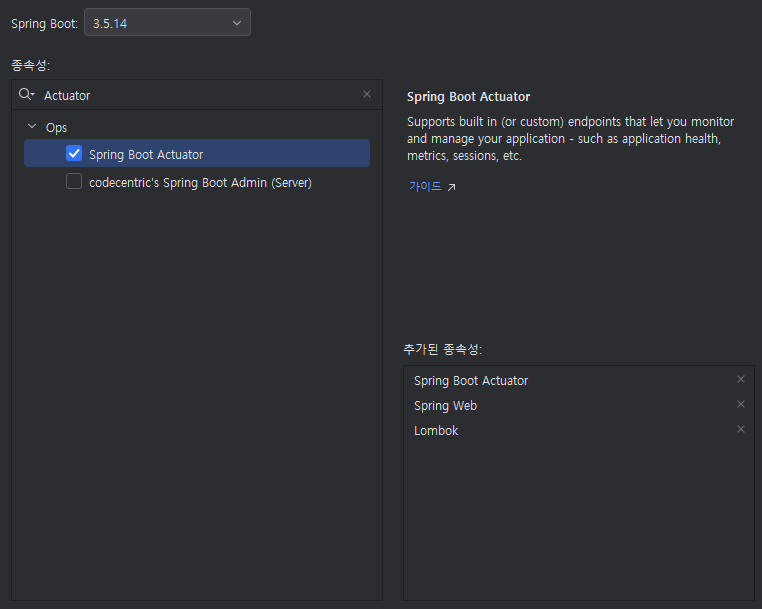
- application.properties
spring.application.name=monitor-demo
server.port=18080

management.endpoints.web.exposure.include=*
management.endpoint.health.show-details=always- localhost:18080/actuator에 접속
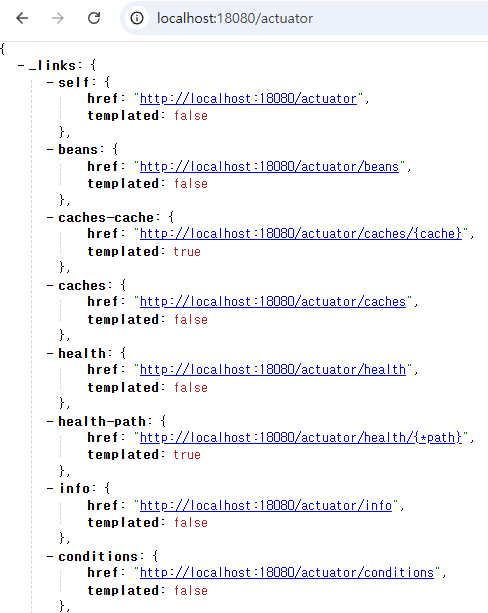
🧩 Prometheus
Prometheus는 시계열 DB*를 사용해 메트릭 데이터를 수집하고 쿼리 및 시각화를 통해 시스템 상태를 모니터링할 수 있는 오픈소스 시스템 모이터링 및 경고 도구다.
* 시계열 DB: 시간에 따라 변하는 데이터를 변하는 DB
주요 구성 요소
| Prometheus 서버 | 메트릭 데이터를 수집하고 저장하는 핵심 컴포넌트 |
| Exporter | 특정 애플리케이션이나 시스템의 메트릭 데이터를 Prometheus가 이해할 수 있는 형식으로 변환해주는 도구 |
| Pushgateway | 짧은 수명의 작업(job)에서 메트릭을 수집하여 Prometheus 서버에 푸시(push)함 |
| Alertmanager | 경고(alert) 처리 및 알림 (이메일, 슬랙 등) |
| Grafana | Prometheus 데이터를 시각화하기 위해 자주 사용되는 대시보드 도구 |
실습
- Prometheus 의존성 추가
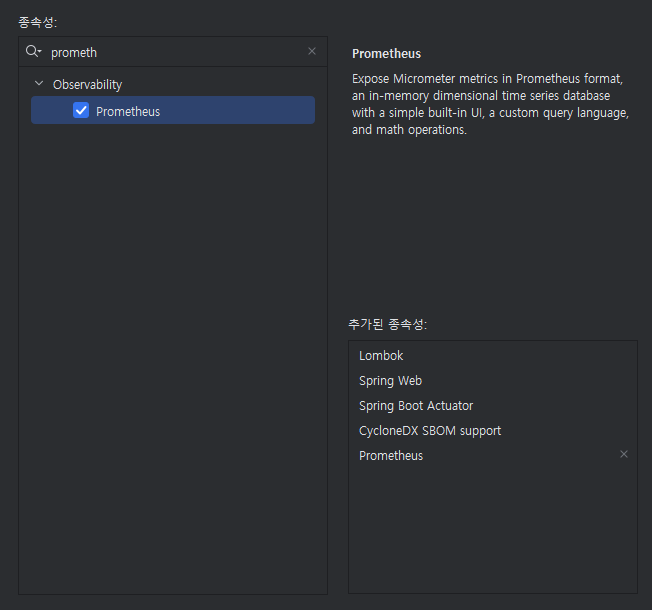
- application.properties 수정
management.endpoint.prometheus.access=unrestricted- localhost:18080/actuator/prometheus 접속

- prometheus.yml 생성
global:
  scrape_interval: 15s

scrape_configs:
  - job_name: 'spring-boot'
    metrics_path: '/actuator/prometheus'
    static_configs:
- targets: ['host.docker.internal:18080']- Docker 실행
docker run -d --name=prometheus -p 9090:9090 -v "...\prometheus.yml:/etc/prometheus/prometheus.yml" prom/prometheus
- localhost:9090/ 접속
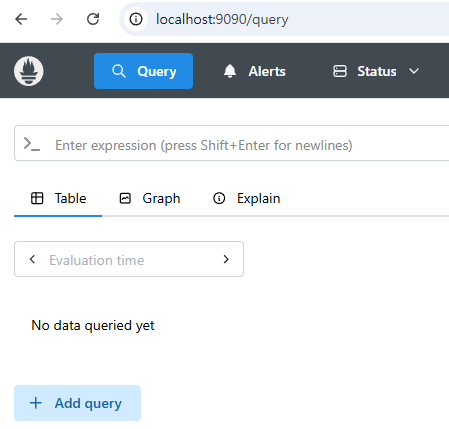

🧩 Grafana
Grafana는 다양한 데이터 소스를 지원해서 데이터를 시각화하고 분석할 수 있도록 돕는 오픈소스 데이터 시각화 및 모니터링 도구다.
- 주요 기능: 대시보드 생성, 다양한 데이터 소스 지원, 알림 기능, 플러그인 지원, 사용자 관리
Grafana 실습
- Docker로 Grafana 컨테이너 실행
docker run -d --name=grafana -p 3000:3000 grafana/grafana
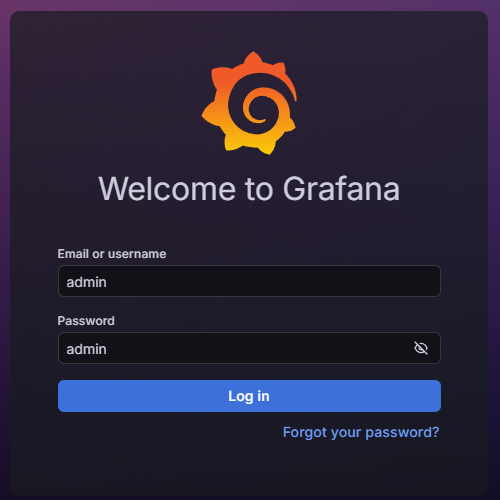
- localhost:3000에 접속해 로그인 진행
- Connections - Data sources - Prometheus 선택

- 상단 검색창에 'Import Dashboard' 입력
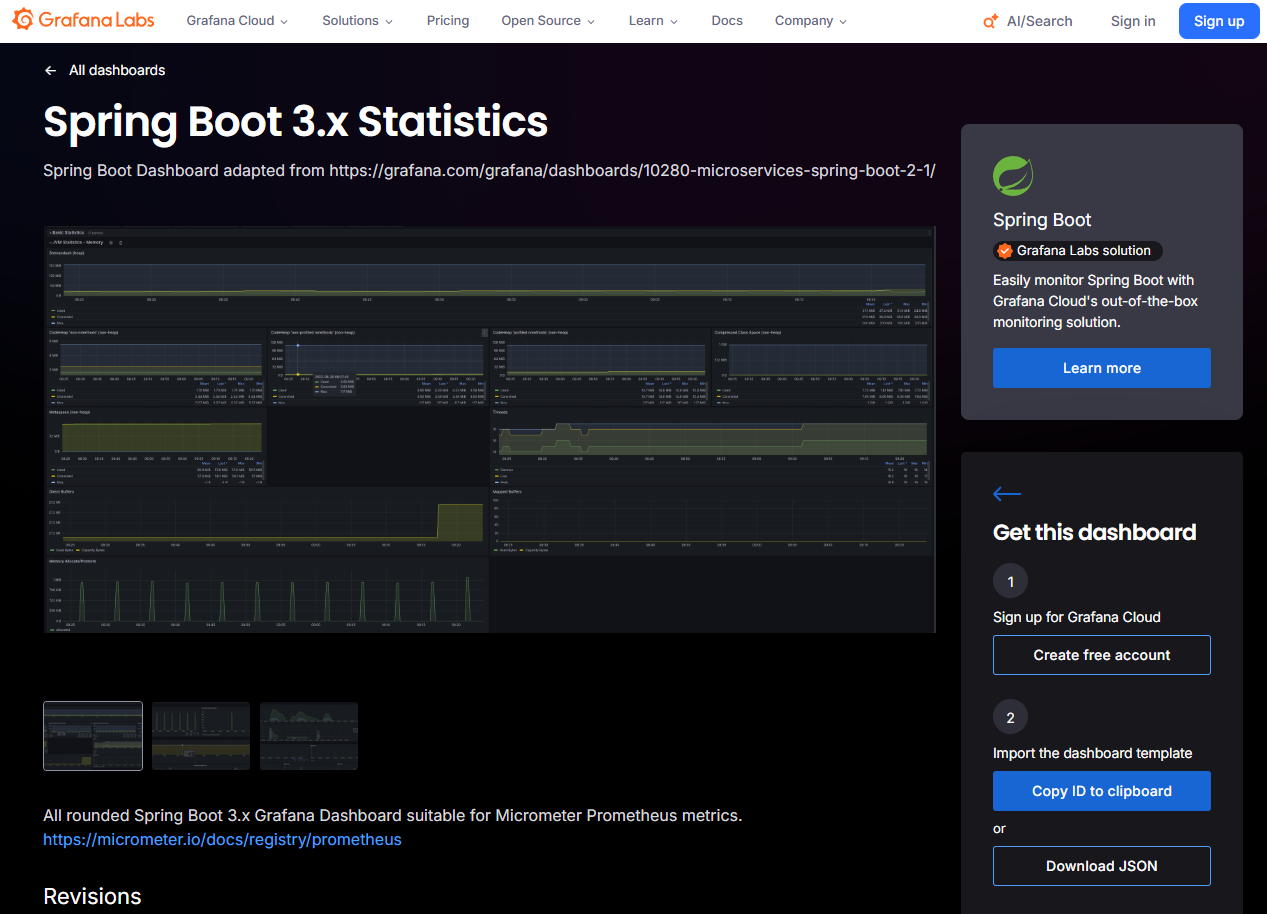
- grafana.com/dashboards 에서 마음에 드는 대시보드 레이아웃 선택
- Copy ID to clipboard 클릭 후 Import Dashboard 페이지로 돌아와 ID 붙여넣고 Load

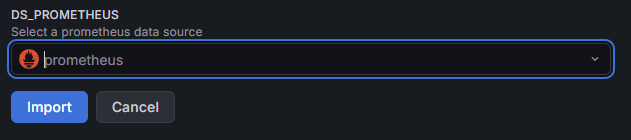
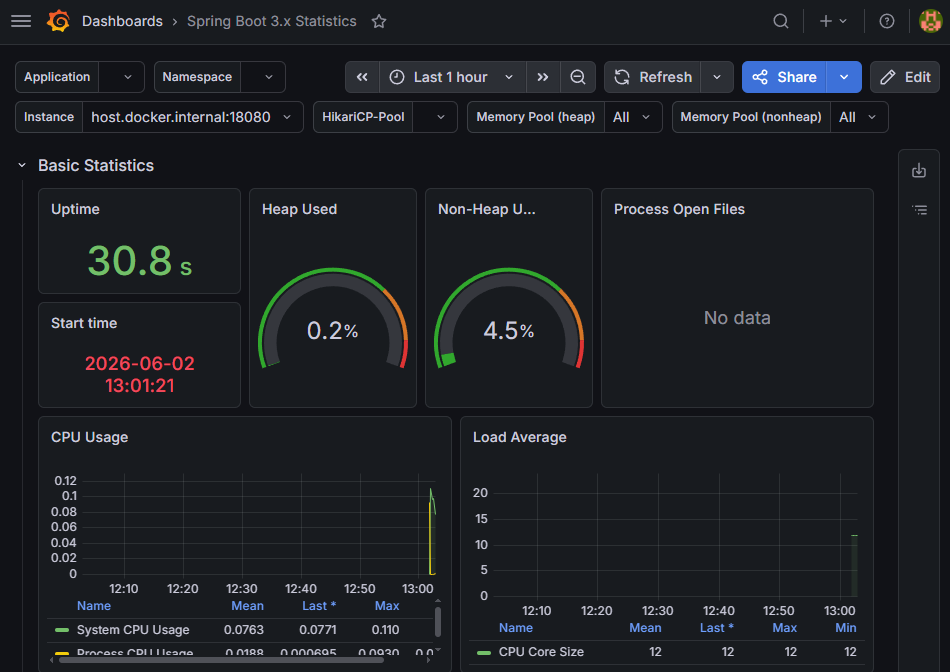
- PROMETHEUS 지정 후 Import
Slack과 연동하기
- https://api.slack.com/apps 에 접속 후 Create an App - From scratch 클릭

- OAuth & Permissions - 범위 - 봇 토큰 범위 - OAuth 범위 추가 → "chat:write" 추가
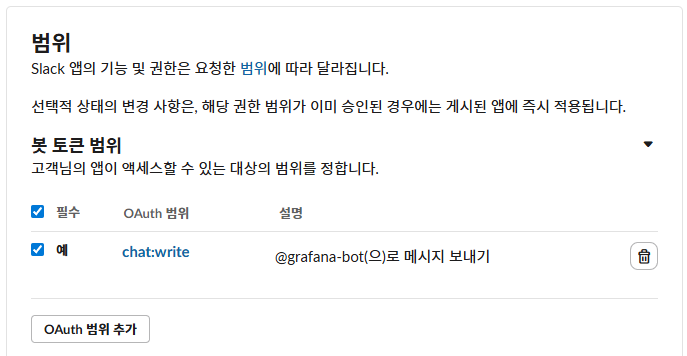
- OAuth Tokens - Install to Workspace → 허용 클릭

- Incoming Webhooks - Activate Incoming Webhooks → ON으로 설정
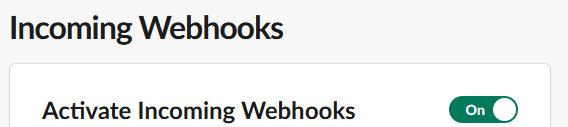
- Add New Webhook to Workspace 버튼 클릭 후 웹후크를 위한 채널 설정

- Slack 채널에 @grafana-bot 추가하기

- Grafana 웹 UI에서 Alerting - Notification configuration - Contact points → New contant point 클릭
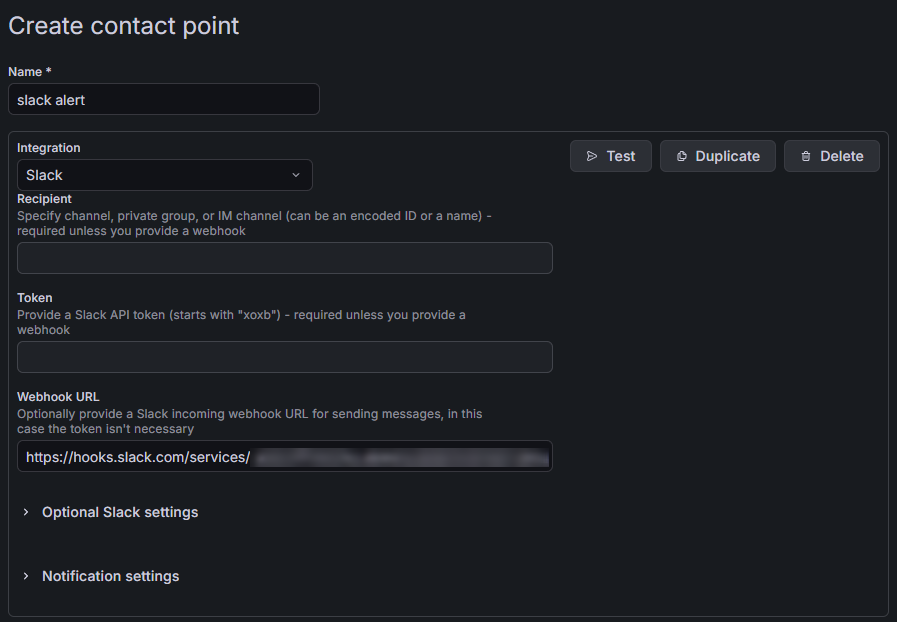
- Test 버튼을 눌러 Slack 채널에 알람이 오는지 테스트
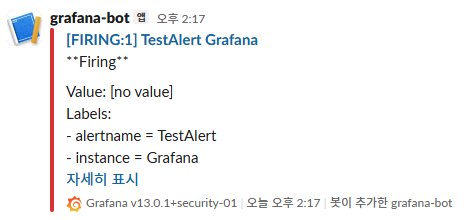
- Alerting - Notification configuration - Notification policies → Default policy 수정
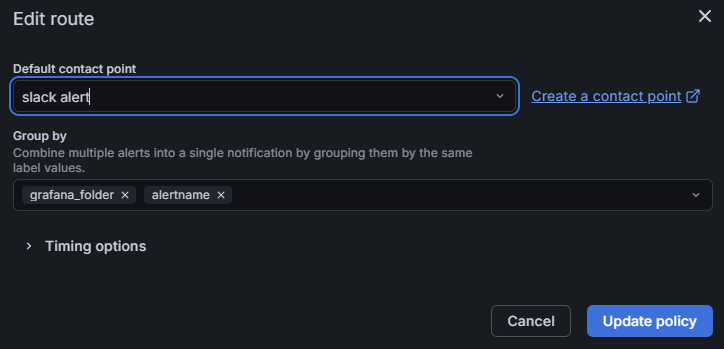
Grafana Alert 규칙 생성하기
Spring Boot Application이 종료되면 슬랙으로 알림이 오도록 해 보자.
- Alerting - Alert rules → New alert rule 클릭

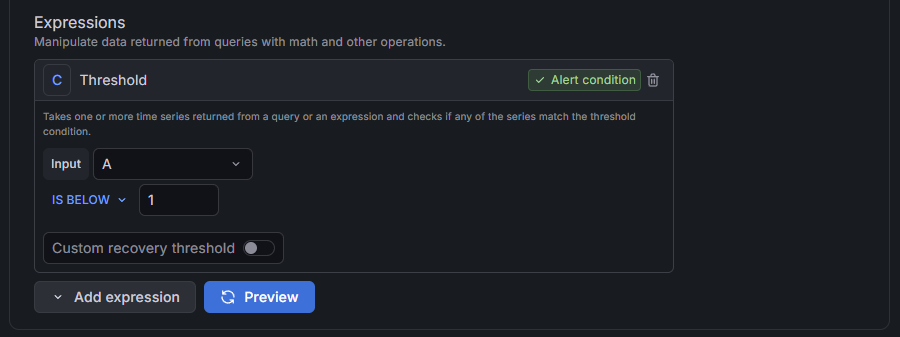
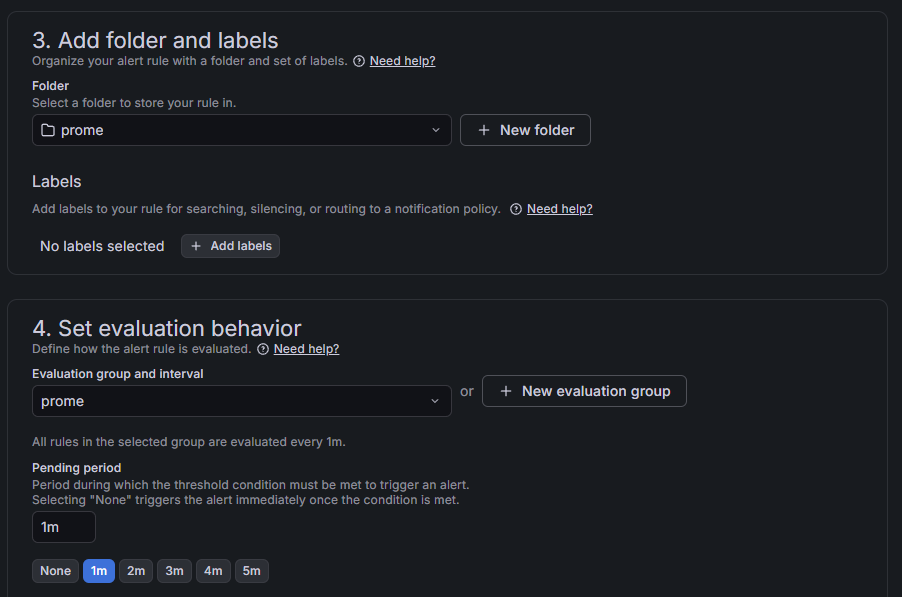

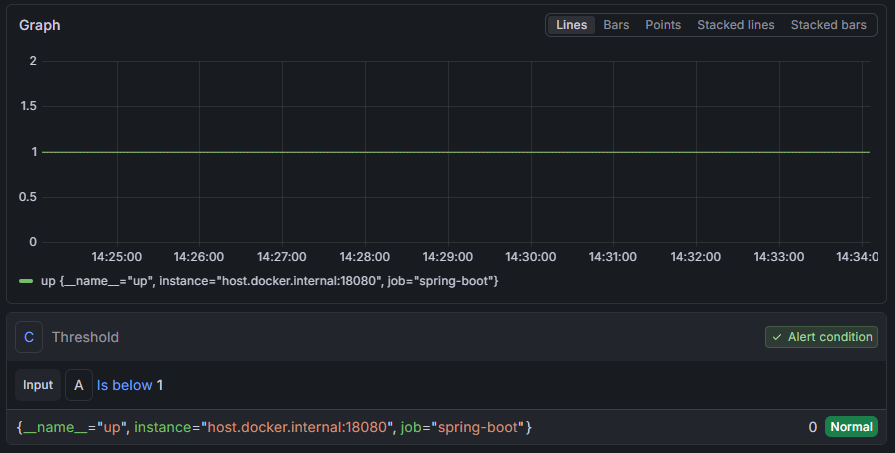
- Spring Boot Application 종료 후 1분 대기
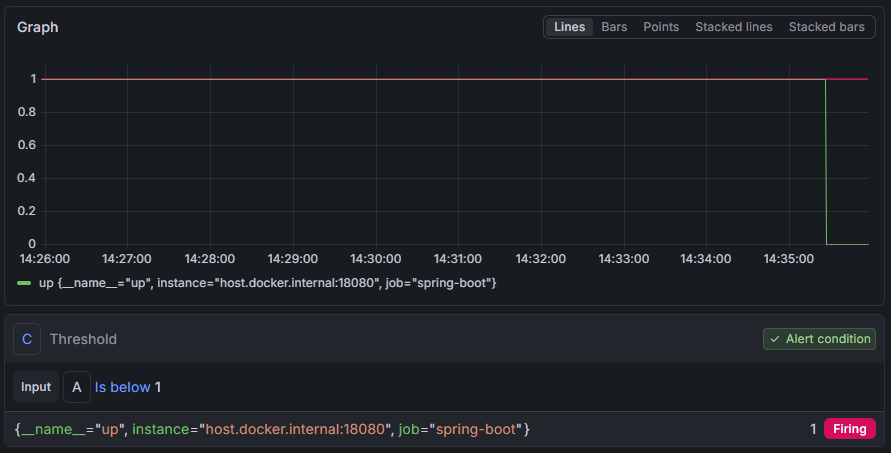

- Spring Boot Application을 다시 실행 한 후 대기


💡 실무에서는 신입 개발자가 Grafana를 설정할 필요 없이 이미 세팅이 되어 있을 가능성이 매우 크다. 개발한 앱이 Prometheus와 잘 연동되는지 확인할 수만 있다면 될 것이다. 그럼에도 불구하고 실제로 Grafana를 세팅해야 할 때는 보안까지 엄격하게 고려하면서 세팅해야 한다.
🧩 Loki
Loki는 Prometetheus의 메트릭 수집 방식과 유사하게 로그 데이터를 수집하고 쿼리할 수 있도록 설계된 로그 집계 시스템이다.
loki-logback-appender는 별도의 Promtail 설정 없이도 로그를 Loki로 전송할 수 있는 라이브러리다.
- build.gradle 수정
implementation 'com.github.loki4j:loki-logback-appender:1.5.1'- SampleController 생성
@RestController
public class SampleController {

    private static final Logger logger = LoggerFactory.getLogger(SampleController.class);

    @GetMapping("/")
    public String hello(HttpServletResponse response) throws IOException {
        logger.info("Attempted access to / endpoint resulted in 403 Forbidden");
        response.sendError(HttpServletResponse.SC_FORBIDDEN, "Access Denied");
        return null;
    }
}- /resources/logback.xml 생성
<configuration>
    <appender name="LOKI" class="com.github.loki4j.logback.Loki4jAppender">
        <http>
            <url>http://localhost:3100/loki/api/v1/push</url>
        </http>
        <format>
            <label>
                <pattern>app=my-app,host=${HOSTNAME}</pattern>
            </label>
            <message class="com.github.loki4j.logback.JsonLayout" />
        </format>
    </appender>

    <root level="DEBUG">
    <appender-ref ref="LOKI" />
    </root>
</configuration>- loki-config.yml 생성 (참고)
auth_enabled: false

server:
  http_listen_port: 3100
  grpc_listen_port: 9096

common:
  instance_addr: 127.0.0.1
  path_prefix: /tmp/loki
  storage:
    filesystem:
      chunks_directory: /tmp/loki/chunks
      rules_directory: /tmp/loki/rules
  replication_factor: 1
  ring:
    kvstore:
      store: inmemory

query_range:
  results_cache:
    cache:
      embedded_cache:
        enabled: true
        max_size_mb: 100

schema_config:
  configs:
    - from: 2020-10-24
      store: tsdb
      object_store: filesystem
      schema: v13
      index:
        prefix: index_
        period: 24h

ruler:
alertmanager_url: http://localhost:9093- Docker 컨테이너 실행
docker run --name loki -d -v "...:/mnt/config" -p 3100:3100 grafana/loki:3.0.0 --config.file=/mnt/config/loki-config.yml
- localhost:3100/ready 접속

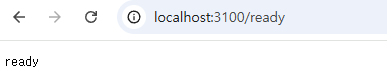
- localhost:18080/ 접속

- Grafana 웹 UI에서 Connections - Data sources → Add new datasource - Loki 클릭
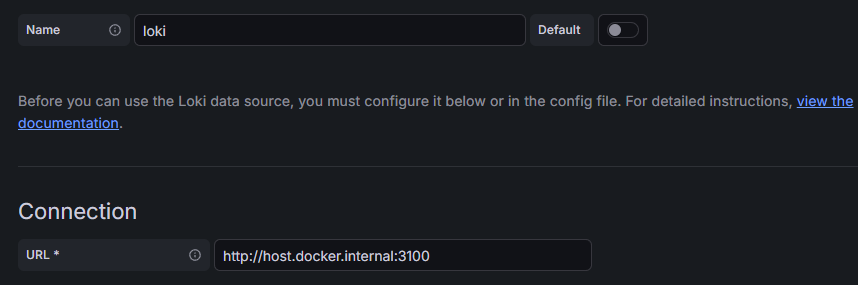
- Explore → 쿼리 설정 후 Run Query 클릭
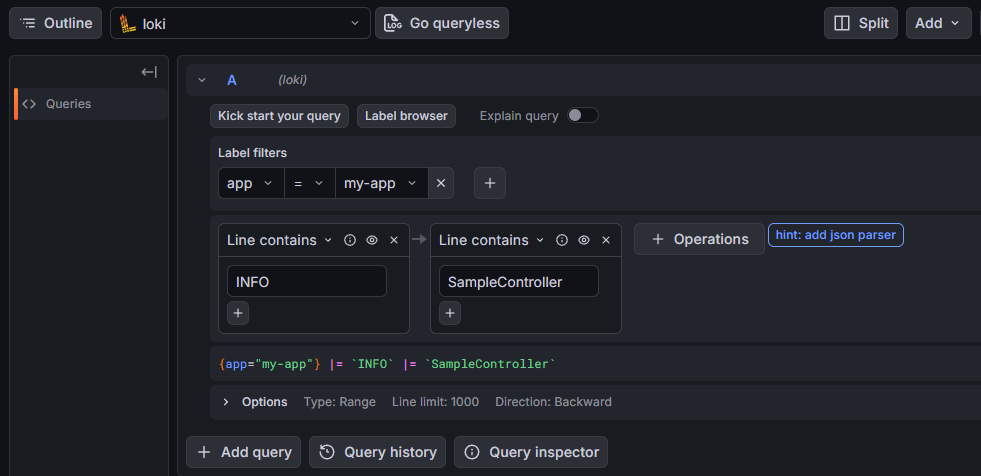

'내일배움캠프' 카테고리의 다른 글
| [내일배움캠프] 로깅 (0) | 2026.05.15 |
|---|---|
| [내일배움캠프] Saga 패턴 (0) | 2026.05.14 |
| [내일배움캠프] 이벤트 소싱과 CQRS, RabbitMQ와 Kafka (0) | 2026.05.13 |
| [내일배움캠프] 대규모 시스템에서의 DB 최적화와 분산 트랜잭션 (0) | 2026.05.12 |
| [내일배움캠프] Redis 심화 (0) | 2026.05.12 |